
Available since DingPOS v3.6
How do I export the tax report for my accountant?
Open Tax Report, tap Export at the top right, and pick a CSV, Excel workbook (XLSX), or PDF report. The file opens in a full-screen preview, where you can tap the share button to save it or send it to your accountant. Every format holds the same figures shown on screen.
How to export
- Open Stats and pick the period, such as a custom range from 11/1 to 12/31 for a two-month filing period, or a quarterly range.
- Tap the Tax tile to open Tax Report. The export covers that exact period.
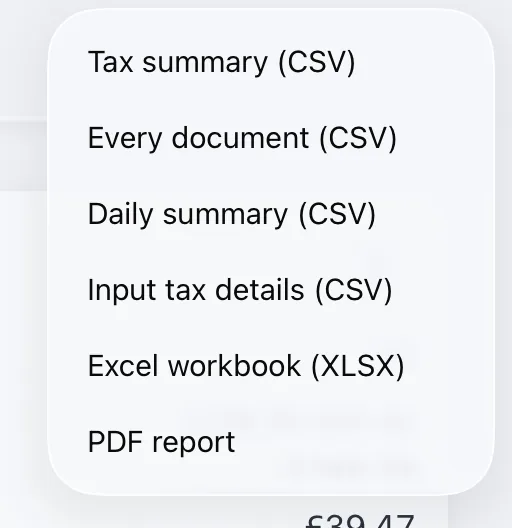
- Tap Export at the top right of Tax Report. A menu lists the formats, with the last one exported on this iPad checked.
- Pick a format, such as Excel workbook (XLSX), to open a full-screen preview. CSV files show as a table, and the Excel workbook lets you switch between sheets, such as checking Summary first.
- Tap the share button at the top right of the preview to save the file or send it to your accountant. Closing the preview returns to Tax Report.
If an export fails, the app shows Couldn’t export the file and Try exporting again. Nothing is written; export again.
Export formats
- Tax summary (CSV): One line per report row (each tax and rate, zero-rated, and untaxed), with sales, returns, and net, before tax and tax.
- Every document (CSV): One line per document under each tax, with date and time, receipt number, document type (sale, return, or a void's reversal), customer name, amounts, and payment methods. A void adds a reversal line on the void's date.
- Daily summary (CSV): The summary per day, then a second table of payments per day and method.
- Input tax details (CSV): Shown only when the report has an input tax card. One line per input tax line of each purchase order and expense, with supplier, supplier tax ID, and invoice number.
- Excel workbook (XLSX): Sheets Summary, Documents, and Daily matching the three sales CSVs, plus Purchases when the report shows input tax. Amounts are number cells, and each column fits its content so nothing opens cut off.
- PDF report: An A4 report in the app's language with store name, period, tax mode, currency, and the report sections. Stores in Australia, New Zealand, Singapore, and the UK get Return boxes first; input tax cards follow when shown. In the preview, sign or annotate with Markup to share the marked file; exporting the same period again writes a clean copy.
Formatting for accounting software
CSV files are UTF-8 and comma separated, with fixed English column names in any app language so accounting software can read them. Amounts use the currency's decimals and a minus sign, without a symbol or thousands separator (such as 80.97, -40.00, or 1000 for a yen store). Dates look like 2026-11-03.
Text cells starting with =, +, -, or @ (such as a customer named =1+1) get a leading ' so spreadsheets show text instead of running a formula. Amounts never get it.
File names carry the period, such as tax-report-summary_2026-11-01_2026-11-30.csv, tax-report_2026-11-01_2026-11-30.xlsx, and tax-report_2026-11-01_2026-11-30.pdf, so files from different periods never overwrite each other.
Permissions and privacy
Every plan can export, including Lite. Staff need the Stats permission, the same as for Tax Report.
Files with input tax ask for the approvals their cards need first: Cost & profit for purchase orders and P&L & expenses for expenses. This covers Input tax details (CSV), plus Excel workbook (XLSX) and PDF report when input tax cards appear. Canceling writes nothing; the three sales CSVs never ask.
Every document (CSV) contains customer names, and input tax files contain supplier names and tax IDs. Share them only with people who should see them.