
Available since DingPOS v3.6
How do I record input tax (VAT or GST on purchases)?
Turn on Claim input tax in Settings → Store Info to record claimable tax from supplier invoices on purchase orders and expenses. Both forms then get an input tax section where you copy the claimable tax from each invoice. The tax report lists it in two cards, Input tax on purchase orders and Input tax on expenses.
Turn on Claim input tax
- Open Settings → Store Info and find the tax card.
- Under Charge tax, switch on Claim input tax.
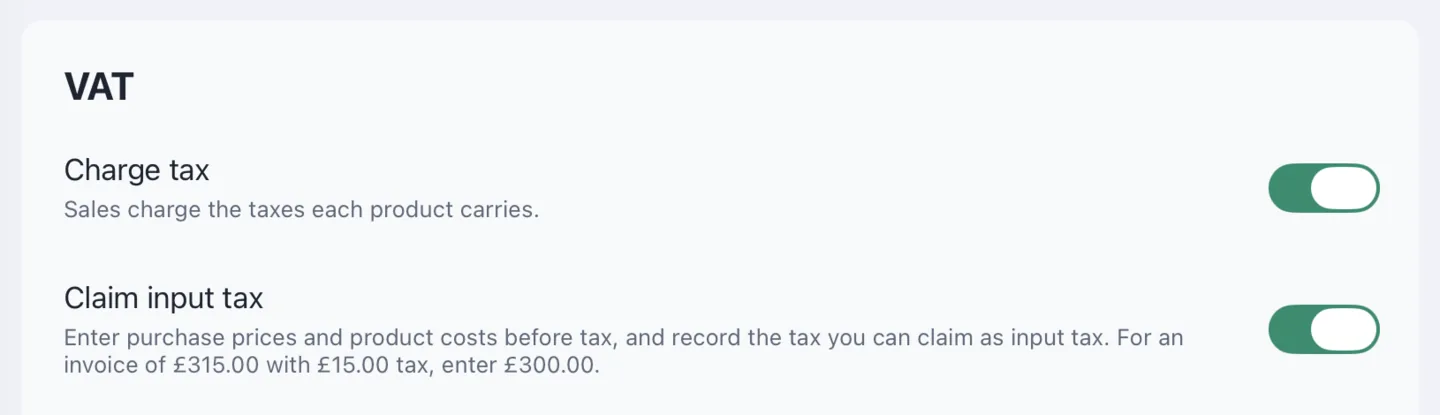
Claim input tax appears only when the store has at least one tax and starts off for new stores and after updating. Switching it saves at once and logs under Tax settings in Activity log. With it on, enter purchase prices and product costs before claimable tax; non-claimable tax stays in the cost.
Every plan has the Claim input tax switch, while Purchasing requires Standard or higher. Turning it off hides the fields on new records; existing records keep their input tax and amount payable, and past tax reports stay unchanged.
Purchase orders
- Open Purchasing and tap New purchase.
- Enter unit prices before claimable tax, then scroll past extra costs to Input tax.
- Check Invoice date, which defaults to the order date, and add optional Invoice number and Supplier tax ID.
- Pick a store tax for Rate, or choose Other rate… to type up to 3 decimals such as 9.975%.
- Check Before tax, which starts at the order total before tax, and copy Claimable tax from the invoice.
- Tap Add a rate for extra rates.
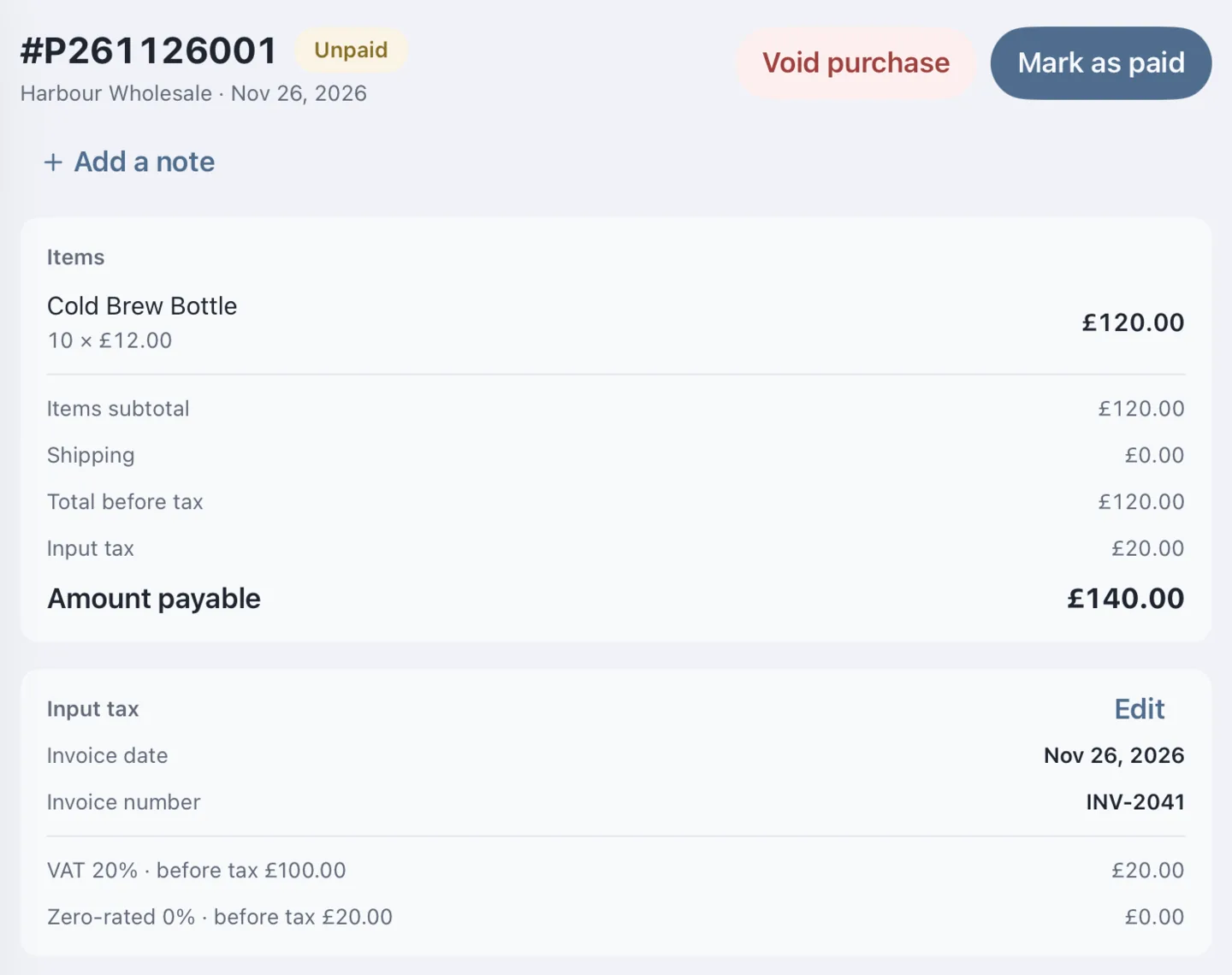
Claimable tax starts blank; DingPOS never works it out from the rate and accepts invoice rounding. For example, flour 10 × $300 plus $100 shipping on invoice AB-12345678 dated 30 June 2026 with one 5% line of Before tax $3,100 and Claimable tax $155 gives Total before tax $3,100, Input tax $155, and Amount payable $3,255, which shows in the list, order detail, and Unpaid Bills. A Supplier tax ID on a supplier fills new orders; saved orders keep theirs.
If an invoice arrives late, open the received order and tap Record input tax on the Input tax card, or Edit to change it. Only Amount payable changes; stock, product cost, and paid or unpaid status stay unchanged. Voided orders keep Input tax read-only, and orders saved before the update are not backfilled.
Expenses
In P&L → One-off Expenses, the form adds Invoice number and input tax lines under the amount. Keep the amount before claimable tax and copy only the claimable tax. On a $1,100 stationery invoice with $100 claimable, enter $1,000 and a 10% line of $1,000 and $100; With tax shows $1,100 and the P&L counts $1,000. Its input tax counts whole on the expense date, never following Month counted or a spread.
In P&L → Fixed Expenses, open a saved expense such as rent or utilities and tap Record an invoice under Invoices as each invoice arrives, with the invoice date, optional invoice number, and at least one rate line. If Rent is $30,000 a month and July and August invoices each carry a 5% line of $30,000 and $1,500, the July–September report holds $3,000 of input tax while the P&L still counts $30,000 each month.
Saving an input tax change in a past month asks Save the change? and warns that the month's tax report changes if you already filed it. Current-month edits and drafts save without asking.
DingPOS does not calculate import VAT, reverse charge, or partial credit. Copy the claimable tax from the invoice, and put any tax you cannot claim in the amount before tax.
Tax report
Two cards sit after the sales cards: Input tax on purchase orders and Input tax on expenses. Each lists one row per rate, a No input tax row, and totals for Before tax, Claimable tax, and With tax. Totals include purchases with no input tax, though some returns count only rows with input tax.
- Purchase orders count on Invoice date, or the order date if blank.
- Voided purchase orders count as a negative amount on the void date.
- One-off expenses count whole on the expense date.
- Fixed expense invoices count on the invoice date.
Input tax on purchase orders needs Cost & profit and Input tax on expenses needs P&L & expenses; staff without a permission see Ask a manager to approve under the card title. The Tax tile still shows only tax collected on sales, never minus input tax, because Japan's simplified method and the UK flat rate work differently. Stores in Australia, New Zealand, Singapore and the UK also see these amounts in Return boxes.