
Available since DingPOS v3.6
Where is the tax report and how do I read it?
Open Stats and tap the Tax tile to view Tax Report, which lists sales and tax by rate for the period Stats shows. Copy these figures into a VAT, GST, or sales tax return, or send them to an accountant. Later tax changes never alter stored document figures.
Opening the tax report
- Open Stats and pick the period, such as This Month or a custom range.
- Find the Tax tile in the second row after Total Discounts.
- Tap the Tax tile or Tax report ›.
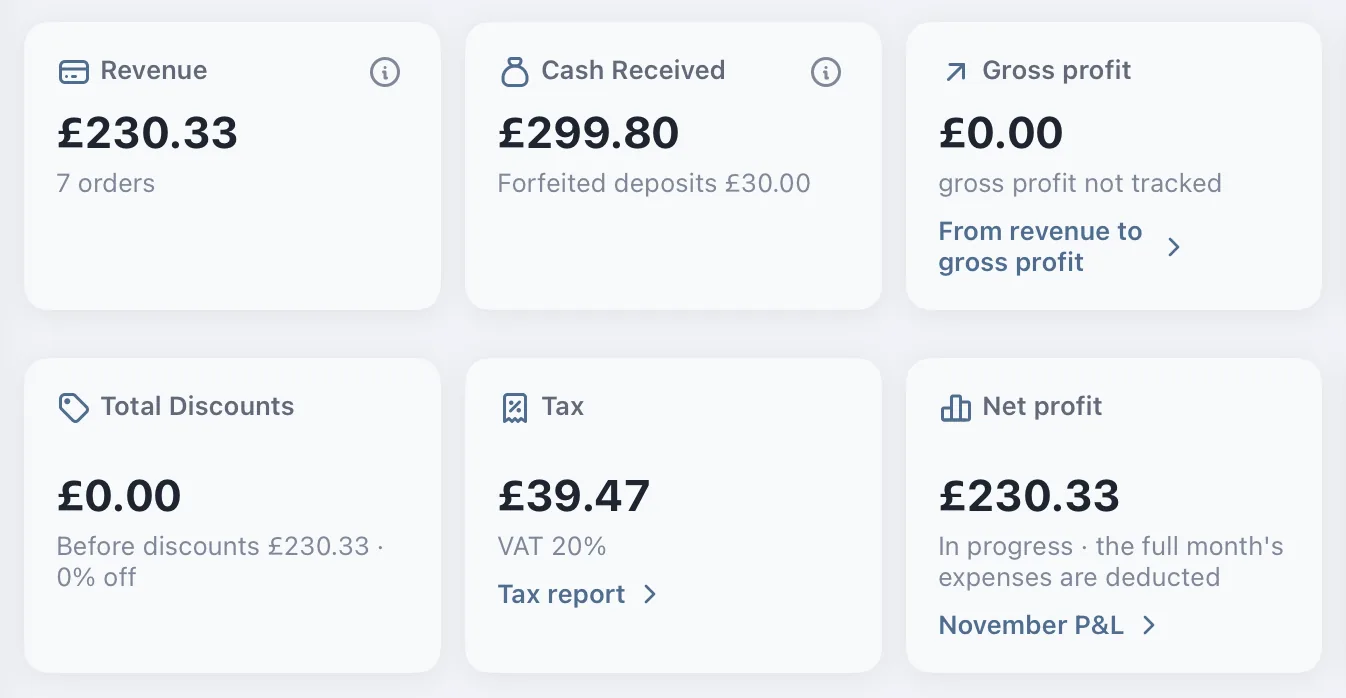
This tile is the only way in. Its subtitle names the taxes collected in the period, largest amount first: two by name, three or more as, for example, 3 taxes incl. PST 7%. The header shows Stats' period (This Month · 11/1 – 11/30) with no period picker or last-month shortcut, since filing periods differ (Taiwan two months, Australia a quarter, Japan a year).
Stores with no tax and no taxed sales in the period see no Tax tile; periods without documents show Stats' empty state. Deleted taxes keep the tile for periods holding sales under them.
Every plan, including Lite and the trial, has the tile, report, and every export. Staff need Stats permission; roles needing approval see the approval placeholder until a manager approves.
Reading the report
Stores in Australia, New Zealand, Singapore, and the UK see Return boxes first.
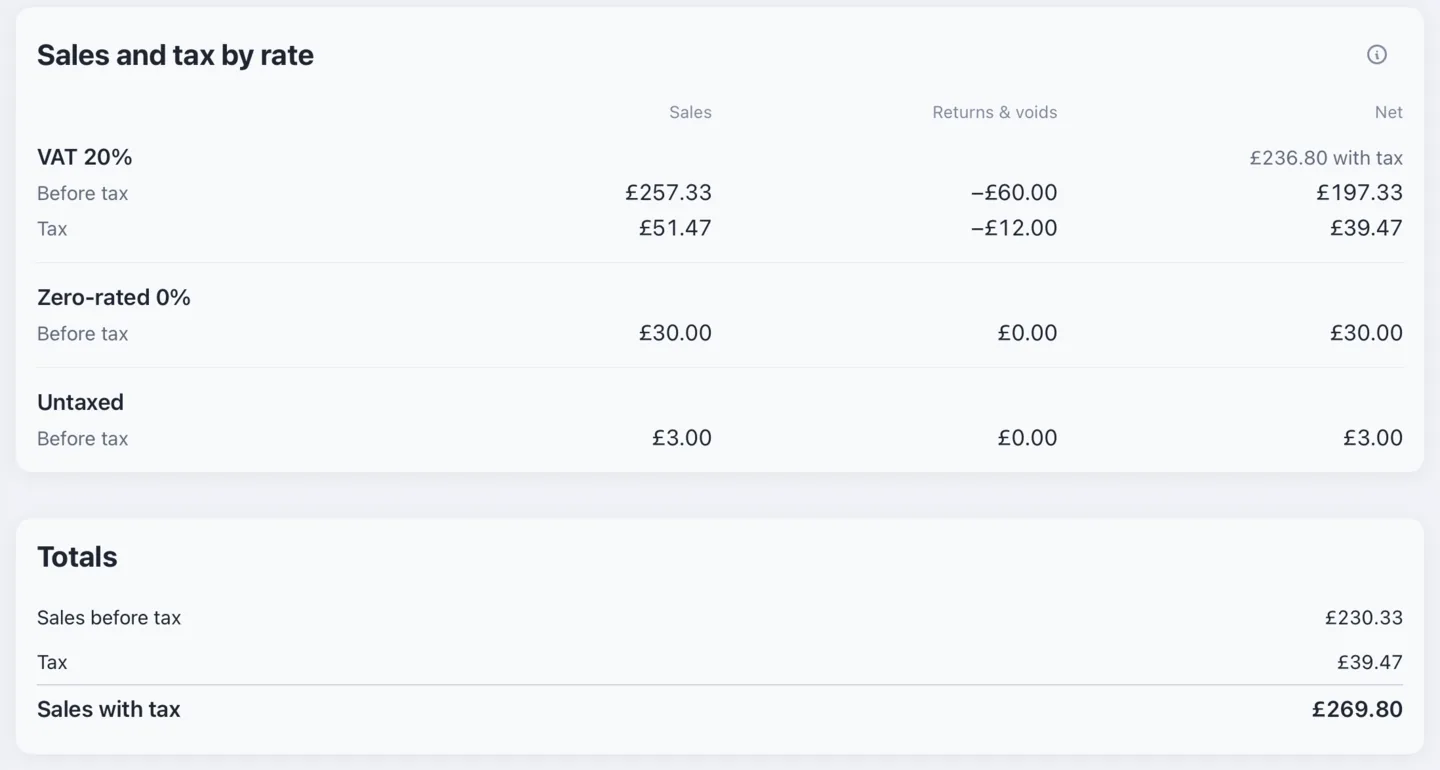
Sales and tax by rate lists one row per rate: highest first, 0% zero-rated next, and Untaxed (products with no tax) last. Columns are Sales, Returns & voids, and Net, each with Before tax and Tax; zero-rated and Untaxed rows have no tax line. Every store tax gets a row even with no sales. Renaming keeps one row; a rate change adds one.
Totals shows Sales before tax, Tax, and Sales with tax. With two or more taxes, a note says one sale can carry multiple taxes, so row sales cannot be summed; Sales before tax counts each sale once. For a UK quarter, VAT 20% might show Before tax £1,000 and Tax £200, Zero-rated 0% £300, and Untaxed £50: Totals gives Sales before tax £1,350, Tax £200, Sales with tax £1,550.
- By payment method lists payments on these documents by period end, unpaid amounts as Accounts receivable, and cash rounding on an Incl. cash rounding … line inside the cash row.
- Not counted as sales shows only for forfeited deposits, listing Forfeited deposits with a subtitle to check filing with an accountant, adding to neither sales nor tax.
- Shops with Claim input tax on, or recorded input tax in the period, also see Input tax on purchase orders and Input tax on expenses.
Which day each document counts on
Tap ⓘ beside Sales and tax by rate:
- A void counts in the period it was voided, as a negative amount, so a period already filed never changes. Stats removes it from the sale's period instead.
- A return counts on its own date. In an exchange, the new items count as sales and the returned items as returns.
- A pre-order counts on its pickup day; an on-account sale on the day of the sale.
A 10/30 sale voided on 11/2 stays in October Sales and appears as a negative amount in November Returns & voids. Settling an on-account sale later does not move it.
Tax collected and Stats totals
The Tax tile equals Tax Report's Tax total. It differs from Stats' From revenue to gross profit Tax row only on cross-period voids, because Stats takes a voided sale out of its original period.
Tax Report shows tax collected on sales, never tax payable (output minus input tax), because not every country calculates it that way, such as Japan's simplified method or the UK Flat Rate Scheme.