FAQ
Got questions? Here are answers to the most common ones.
Combine an iPhone Shortcut with the Back Tap accessibility feature — tap the back of your phone while viewing a postcard in Pikmin Bloom to automatically screenshot and import it into Pikgeon.
- Make sure Pikgeon is updated to v1.5 or later
- Download the shortcut file below, then open the Shortcuts app to install it
- Go to Settings → Accessibility → Touch → Back Tap
- Set Double Tap or Triple Tap to the "Import to Pikgeon" shortcut
This feature requires Pikgeon v1.5 or later. Please update from the App Store if you haven't already.
On the Records page, tap the merge icon in the top-right corner to access the Merge Friends feature.
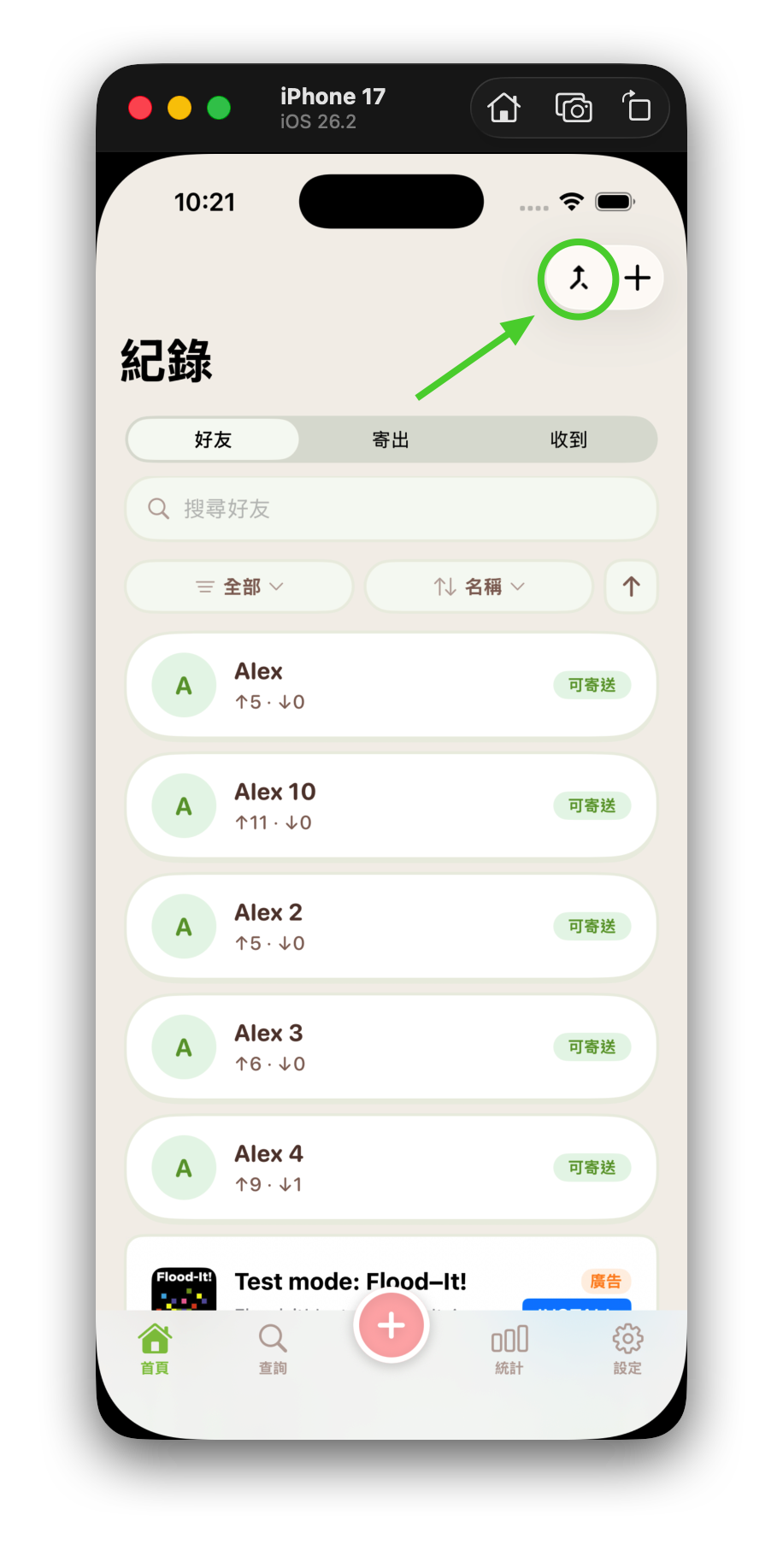
Merging is irreversible — please confirm the friends you want to merge before proceeding.
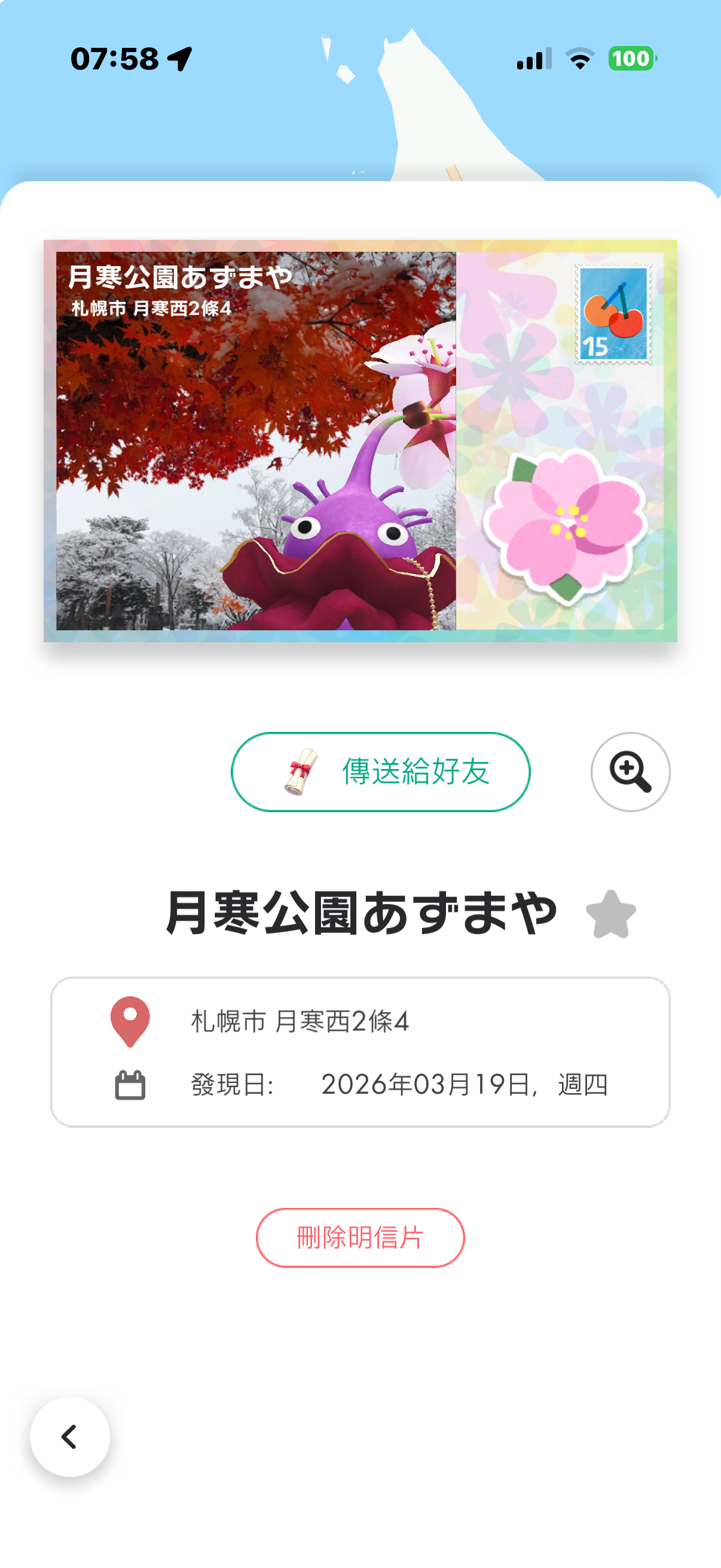
The most common reason is that the postcard image doesn't contain a sender or recipient friend name. Pikgeon needs the "From / To" friend name info on the postcard to correctly recognize and create a delivery record.
- Postcards shared from Pikmin Bloom must include the sending friend's name
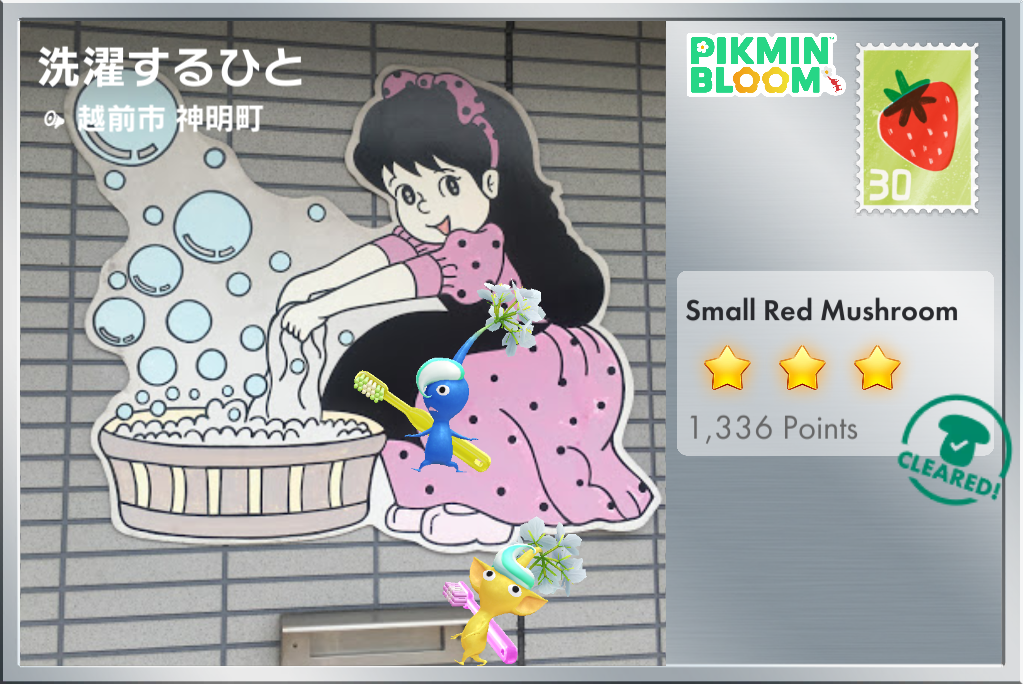
- Some images (e.g. Décor Pikmin gallery, challenge results) don't contain friend info and can't be recognized
- When taking a screenshot, make sure the full postcard is visible — don't crop the friend name area
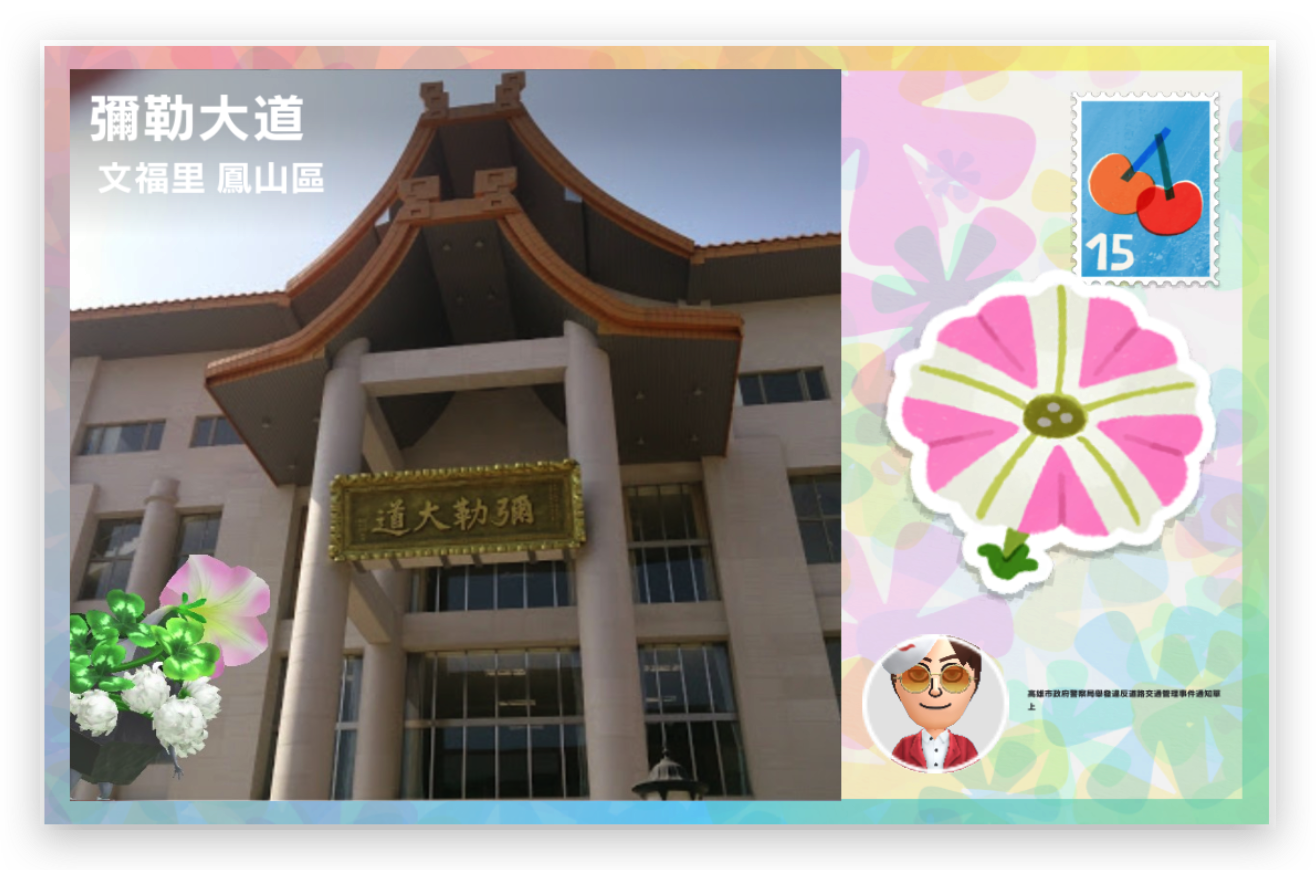
- When a friend name is extremely long, the text on the postcard shrinks to a very small size, making OCR recognition unreliable
Didn't find your answer? Reach out to us:
alustudio14@gmail.com